Is hotel Wi-Fi safe? For everyday browsing, mostly yes: the FTC says public Wi-Fi is usually safe now because most websites encrypt traffic with HTTPS. The real risks at hotels, airports and cafes are fake hotspots, look-alike login pages and shared networks that can see which sites you visit. Our fix: turn on a VPN such as Surfshark (one plan covers unlimited devices, servers in 100 countries) on shared networks, and bank on your own data.
That advice changed over the last decade. When most sites sent pages unencrypted, anyone on the same coffee-shop network could read them. Today the FTC’s consumer guide “Are Public Wi-Fi Networks Safe?” says connecting is “usually safe” for that reason, and warns that encryption won’t protect you from a scammer who runs the site you’re typing into. So the job on a trip is less about hiding from hackers in the lobby and more about not being tricked into the wrong network or the wrong login page.
What are the real risks of hotel, airport and cafe Wi-Fi?
The real risks on public Wi-Fi today are networks pretending to be the one you meant to join, login pages built to collect your details, and shared networks where other guests can see your device. Reading your bank password off the air is much harder than it was, because nearly every login page is encrypted.
| Risk | What happens | What protects you |
|---|---|---|
| Evil twin (look-alike hotspot) | Someone broadcasts “Hotel_Guest” next to the real “HotelGuest”, often with a stronger signal, and sees or redirects your traffic | Confirm the exact name with staff; a VPN encrypts what you send even on the wrong network |
| Fake captive portal | A sign-in page asks for card details, an email password or an app install before it lets you online | Never enter account passwords on a Wi-Fi sign-in page; walk away from unexpected payment requests |
| Unencrypted sites | A page without HTTPS sends what you type in readable form | Check for the lock or “https” in the address bar; most sites have it |
| Shared hotel network | Other guests on the same network can see devices that announce themselves and reach shared folders | Turn off file sharing; set AirDrop to Contacts Only; use a VPN |
| Network operator logging | The hotel or cafe can see which domains you connect to, even when the pages are encrypted | A VPN hides the site names from the Wi-Fi operator |
| Phishing and fake websites | A real network, but a fake bank or airline page that looks right | Two-factor authentication; type addresses yourself or use the official app |
The look-alike network is the one government guidance keeps coming back to. CISA’s guidance on wireless networks describes an attacker who impersonates a legitimate access point using a stronger broadcast signal, notes that many public access points aren’t secured and their traffic isn’t encrypted, and tells you to confirm the name and password of a public hotspot before you use it.
Captive portals deserve a word, because they’re the screen every hotel guest sees. A real hotel portal usually asks for your room number and last name, an access code from the front desk, or a click to accept the terms. A portal that asks for your Google or Microsoft password, wants you to install a “security certificate” or profile, or charges for Wi-Fi the front desk told you was free is a reason to disconnect.
What does HTTPS already protect?
HTTPS encrypts everything between your browser or app and the website’s server: the pages you read, the forms you fill in, your passwords and card numbers. Someone else on the same hotel Wi-Fi can see that you’re connected to a site, but not what you do there. Most banking, airline and booking sites and apps use it by default.
Three things HTTPS doesn’t cover:
- Which sites you visit. The network can still see the domain names, so the hotel knows you opened your bank’s site even though it can’t read the page.
- A fake site with its own lock. The FTC points out that scammers encrypt their fake sites too, so a lock icon proves the connection is private, not that the site is honest.
- The odd site or app that still doesn’t encrypt. Browsers now warn you before loading many of them. If you see “Not secure” next to a login form, don’t type into it on public Wi-Fi.
That’s why the practical advice below mixes a VPN, your own data and a few free settings: each covers a gap the others leave.
Is hotel Wi-Fi safer than airport or cafe Wi-Fi?
Hotel Wi-Fi is usually a little safer than airport or cafe Wi-Fi, because you get the network name and often a password from the front desk, and fewer strangers share it. It’s still a shared network, though. In a large hotel you can be on the same network as hundreds of guests, and some hotel networks let devices see each other.
Here’s how the three compare in practice:
- Hotels: you can confirm the network with staff and the sign-in page usually wants your room number. The weak points are older equipment and guests who can see your laptop if file sharing is on.
- Airports: busy, open networks with lots of devices and many people looking for free Wi-Fi, which makes them a natural place for a look-alike hotspot. Use the network name printed on the airport’s signs or website.
- Cafes: often a password on a chalkboard shared with everyone, so anyone in the room has the same key. Fine for maps and messaging, poor for anything sensitive.
If you’re arriving on a long flight and need data the moment you land, our airport guides such as Heathrow to central London cover what to sort out before you clear passport control.
Do you need a VPN on public Wi-Fi?
You don’t strictly need a VPN on public Wi-Fi for ordinary browsing, because HTTPS already encrypts most of it. A VPN is worth it if you’ll use hotel, airport or cafe Wi-Fi for banking, bookings or work email, because it encrypts all of your traffic between your device and the VPN server, including the site names the Wi-Fi operator would otherwise see.
What a VPN changes on a shared network:
- The Wi-Fi operator sees only an encrypted connection to the VPN server, not your bank, airline or email provider.
- A look-alike hotspot gets much less. If you join an evil twin by mistake, your traffic still travels inside the VPN tunnel.
- Apps that don’t encrypt properly are covered too, since the VPN encrypts everything that leaves the device.
What a VPN doesn’t do, and this matters as much: it doesn’t stop phishing, it doesn’t detect a fake login page, and it can’t remove malware you’ve already installed. The FTC’s tips on choosing a VPN app also remind you that a VPN app can see all of your traffic, so pick a provider with a clear privacy policy and check what the app asks permission for.
We recommend Surfshark for shared networks because one plan covers unlimited devices, so your phone, laptop and your partner’s tablet are all protected, and its apps can connect automatically whenever you join a network you haven’t marked as trusted. It had a 30-day money-back guarantee when we checked on October 31, 2026. Our Surfshark for travel review covers its features, limits and a five-step setup, and do you need a VPN when traveling covers who needs one at all, and the countries where using one is restricted. To weigh Surfshark against NordVPN, ExpressVPN and Proton VPN, see our best VPN for travel comparison.

Is it safe to do online banking on hotel Wi-Fi?
Online banking on hotel Wi-Fi is reasonably safe if you use your bank’s official app or type the address yourself, because the session is encrypted end to end. The safer habit is to do banking on your own cellular or eSIM data, which nobody else in the hotel shares, or to connect through a VPN first.
Your options, from most to least protected, with what they cost (prices checked October 2026):
| How you connect | Cost | Who else is on the network | Best for |
|---|---|---|---|
| Your own eSIM data (Airalo) | A 7-day Europe eSIM with unlimited data was $27 on Airalo | Nobody you share a lobby with | Banking, bookings, arrival day |
| US carrier international day pass | About $12 a day per line with Verizon or AT&T in Europe | Nobody you share a lobby with | Short trips if you don’t want to switch SIMs |
| Hotel or cafe Wi-Fi with a VPN | A few dollars a month on Surfshark’s 2-year plan | Other guests, but your traffic is encrypted to the VPN | Laptops, work, streaming in your room |
| Hotel or cafe Wi-Fi without a VPN | Usually free | Other guests and the operator | Maps, news, messaging apps |
| Your phone as a hotspot for your laptop | Uses your phone’s data | Only you | Banking on a laptop when Wi-Fi looks wrong |
The cheapest way to keep banking off shared Wi-Fi is a travel eSIM. Get an Airalo eSIM before you fly and you have your own data the moment you land; use code GUIDEZ15 at checkout if you’re new to Airalo, or GUIDEZ10 if you’ve bought from them before. If you’ll stream, video-call or keep your laptop online all day and don’t want to watch a data cap, Holafly’s unlimited-data eSIMs are the alternative. Our Airalo vs local SIM vs roaming comparison runs the costs for a week-long trip, and the best eSIM for international travel compares the main plans.
US banks and card apps sometimes flag or block logins from a foreign IP address. If your bank locks you out abroad, connecting to a US server on your VPN can help you reach your own account. Call the number on the back of your card if it stays locked.
Is juice jacking real?
Juice jacking, malware or data theft through a tampered public USB charging port, is a risk the FCC tells travelers to avoid, though we found no confirmed case of it hitting travelers. The FCC’s advice is to skip public USB charging stations and use a wall outlet with your own charger, a portable battery, or a charge-only cable instead.
What that looks like on a trip:
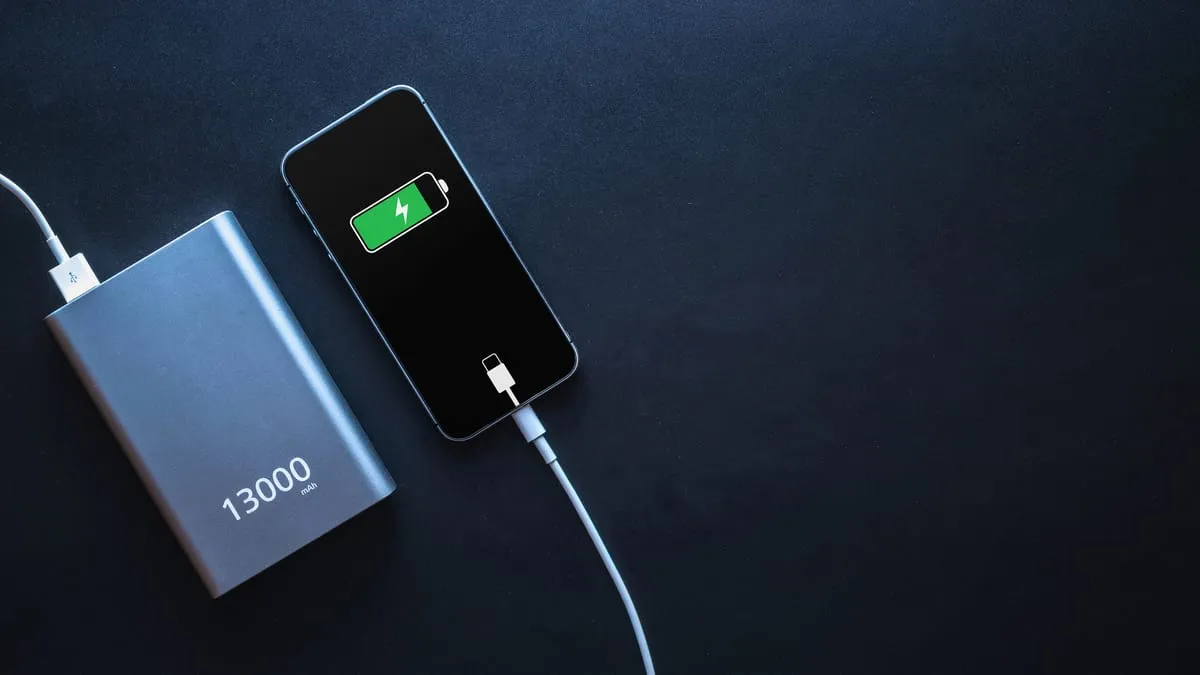
- Pack your own charger and cable and plug into a regular AC outlet. In Europe you’ll need a plug adapter, not a voltage converter, for most phone chargers.
- Carry a power bank for long airport days. Airlines generally want power banks in your carry-on, not in checked bags.
- If your phone asks whether to trust a computer or allow data access when you plug into a USB port, say no. A charger never needs data access.
- Don’t use a free cable someone hands you or one left plugged into a kiosk.
Public Wi-Fi safety checklist for travelers
Most of the protection on public Wi-Fi comes from settings you change once at home. Do these before your trip:
- Update everything. Install the latest iOS or Android update, browser and app updates. The FTC recommends turning on automatic updates so security fixes arrive without you thinking about them.
- Turn on two-factor authentication for your email, bank, airline and booking accounts. If a fake login page catches your password, a second step still stops most account takeovers. Use an authenticator app if you’ll be on a foreign SIM, so codes don’t depend on your US number.
- Install and test your VPN at home. If you go with Surfshark, set it to connect automatically on networks you haven’t marked as trusted, and add your home Wi-Fi to the trusted list.
- Install your travel eSIM before you fly, so banking can stay on your own data from the moment you land. Our eSIM setup guide walks through it on iPhone and Android.
- Turn off file sharing and set AirDrop or Quick Share to Contacts Only. CISA advises against file sharing on public networks.
Then, at each hotel, airport or cafe:
- Confirm the exact network name with the front desk, or on the airport’s signs, before you join.
- Turn off auto-join for that network. On an iPhone, go to Settings, then Wi-Fi, tap the info button next to the network and turn off Auto-Join. On Android, tap the network and choose Forget when you check out. This stops your phone from reconnecting to a look-alike with the same name at the next airport.
- Keep private Wi-Fi addresses on. Apple devices on iOS 14 and later use a different Wi-Fi address for each network by default, which makes it harder for networks to track your device from place to place. Apple explains the settings on its private Wi-Fi address page.
- Read the sign-in page before you type. Room number and last name is normal; your email password is not.
- Bank and book on your own data or through the VPN. Leave hotel Wi-Fi for maps, messages and streaming.
What to do if you think you joined a fake network
If you typed a password on a network or sign-in page that now looks wrong, disconnect, switch to cellular data and change that password from a trusted connection right away. Then turn on two-factor authentication for the account if it wasn’t on already, and check your bank and card apps for charges you don’t recognize.
A few more steps, depending on what you entered:
- Card details: freeze the card in your bank’s app and call the number on the back. US cards come with fraud protection, but you need to report the charges promptly.
- Email password: change it first, because email resets every other account. Check your email settings for forwarding rules you didn’t create.
- Installed something from a sign-in page: remove the profile or app (on an iPhone, look in Settings, General, VPN & Device Management) and run your phone’s latest update.
- Report it: tell the hotel or airport staff about the look-alike network, and report scams to the FTC at ReportFraud.ftc.gov.
Before your next trip, set up the two things that make public Wi-Fi a non-issue: a Surfshark plan that covers every device you travel with, and a travel eSIM so your banking never touches the hotel network. If you’re traveling to Japan, our eSIM vs pocket Wi-Fi comparison shows how a private hotspot fits in. And for what to see once you’re connected, browse creator-made travel maps on Guidez.